Hubstudio is a fingerprint browser designed for cross-border e-commerce, supporting multi-store management across major e-commerce platforms. It comes with a wide range of automation tools and a plugin ecosystem, significantly improving operational efficiency.
This tutorial will guide you on how to configure Jibao Proxy IP in Hubstudio.
Hubstudio + Jibao Proxy Configuration Guide #
1、Get Proxy Information #
Before configuration, you need to obtain proxy IP details from Jibao Proxy.
If you don’t have an account yet, please register first (new users receive a 500MB trial balance).
After logging in, choose the appropriate proxy type and obtain the IP information. For detailed instructions, refer to:
- Dynamic Residential IP — Auto-rotating, ideal for web scraping
- Static Residential IP — Fixed high-anonymity proxy
- Dynamic Datacenter IP — High-speed rotating proxy
- Static Datacenter IP — Stable data center proxy
- Mobile IP — 4G/5G mobile proxy
- Shared Proxy IP — Budget-friendly option
The proxy format will be:
IP:Port:Username:Password
or
Username:Password@IP:Port
2、Configure Proxy in Hubstudio #
Step 1
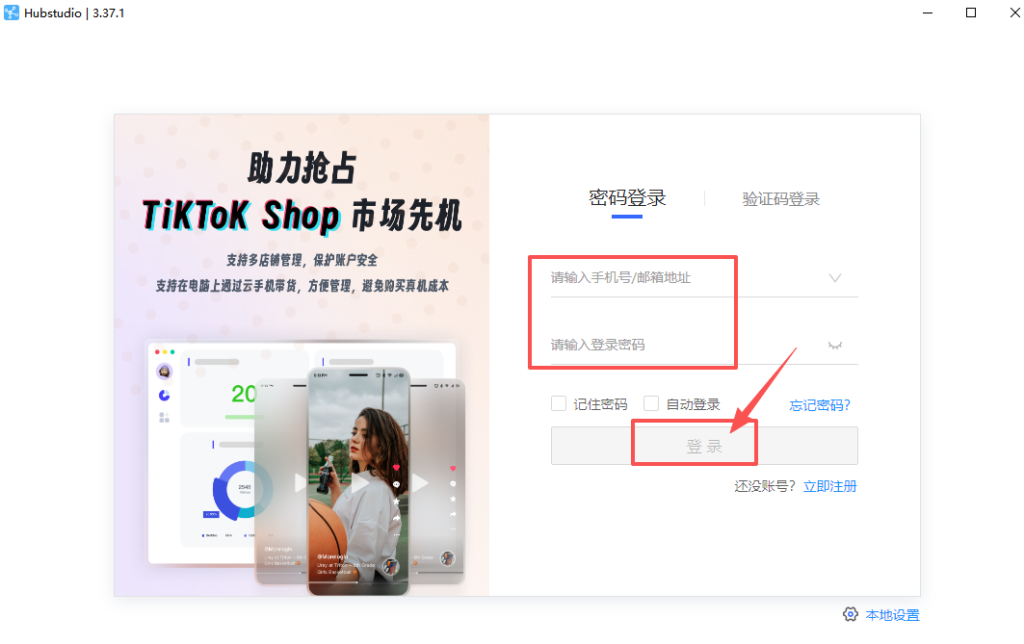
Download and install Hubstudio, register an account, and log in to the client.
(Free trial available)
Step 3 #
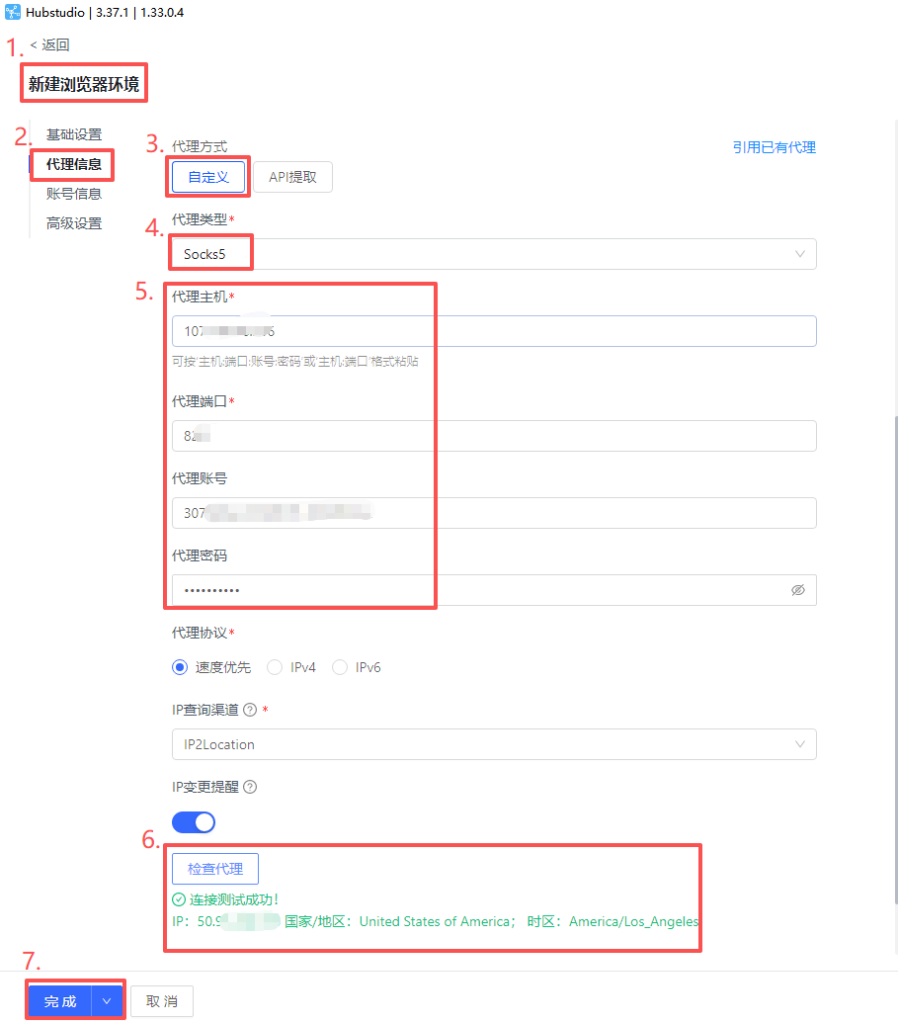
Click “My Environments” on the left → Create a new environment → Configure proxy:
① Custom Proxy #
- Select Proxy Type
- Enter Jibao Proxy details
- Click “Check Proxy”
- Click “Finish” to save the browser
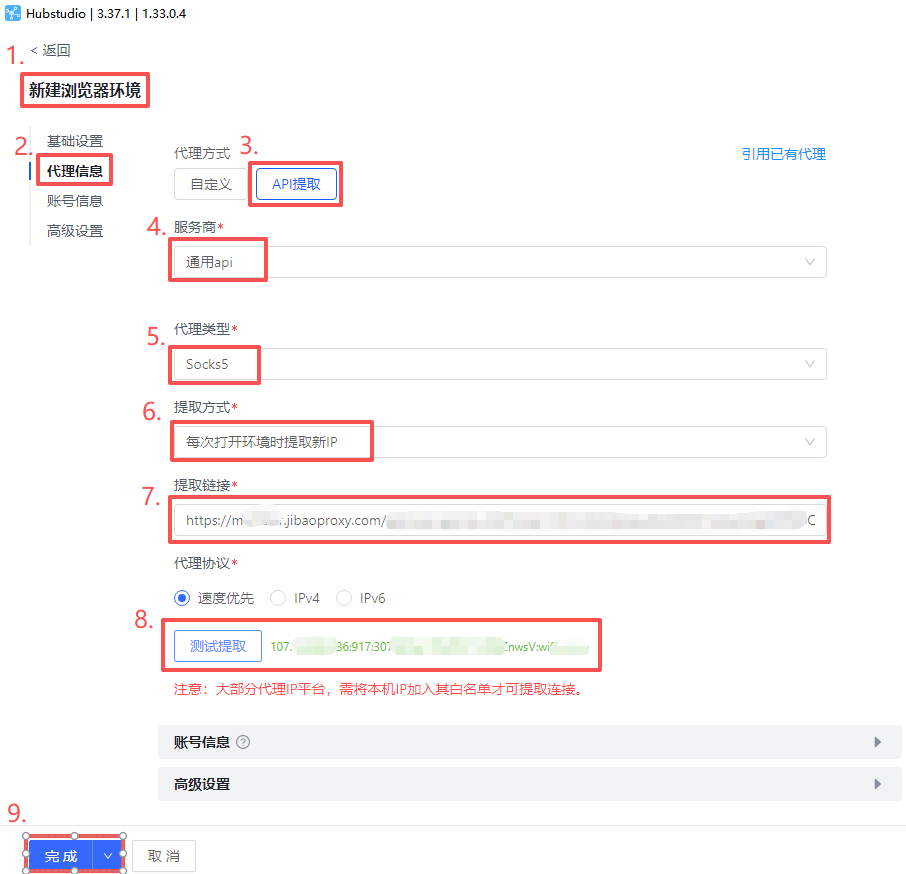
② API Extraction
Select “General API”
Choose Proxy Type
Paste the API link generated from Jibao Proxy
Click “Test Extraction”
Click “Confirm” to save the browser 点击“测试提取” → 点击“确定”保存浏览器。
Step 3
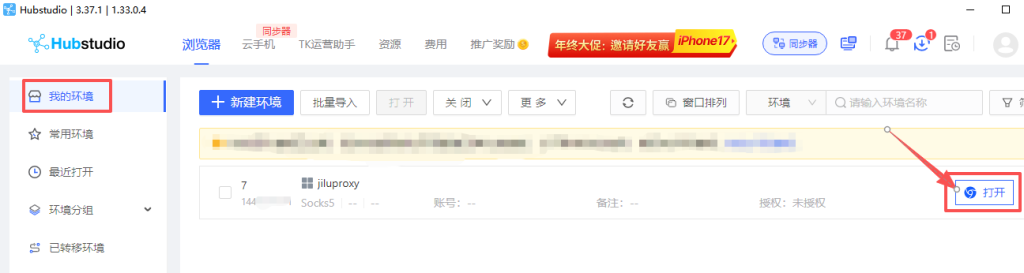
In the browser list, click “Open” to start using it.


 JIBAO PROXY

 English
 简体中文
简体中文 日本語
日本語 한국어
한국어 Español
 Français
 Русский
 العربية
 বাংলা
বাংলা فارسی
فارسی हिन्दी
 Filipino
 اردو
اردو Português
 ไทย
ไทย Tiếng Việt
 繁體中文
繁體中文
